 Build faster with AI — Get started with the Nium MCP Server
PGP Prerequisites
Some endpoints in Nium's API have prerequisites that your integration needs to meet before you can use them. These prerequisites are in place for compliance and security purposes.
The following APIs require PGP key configuration (using GPG with RSA encryption):
The existing integration requirements specify 2048-bit RSA PGP keys. Confirm current key-length and rotation requirements with Nium before production use.
Security
Nium's APIs use HTTPS. For endpoints requiring PGP encryption, your integration must configure the appropriate public keys with Nium.
Share your public PGP key with Nium through the approved secure channel. Never share your private key or its passphrase. Nium may also need to allowlist your integration's IP address as part of the setup.
The following table summarizes the key exchange and encryption model described for this integration. Confirm the exact direction of encrypted payloads for each endpoint with Nium.
| API action | Description |
|---|---|
| API request | 1. Your integration provides its public PGP key to Nium. 2. Nium uses that public key to encrypt data intended for your system. 3. Your system decrypts the data using its private PGP key. |
| API response | 1. Nium provides its public PGP key to your integration. 2. Your system uses Nium's public key to encrypt data intended for Nium. 3. Nium decrypts the data using its private PGP key. |
Generate PGP keys
To generate a public and private PGP key pair, follow the steps below. The examples use Git Bash on Windows with GPG installed.
PGP commands
| Action | Command |
|---|---|
| Generate a PGP key | gpg --full-generate-key |
| List PGP secret keys | gpg --list-secret-keys |
| Export public key | gpg --output clientfile-public.key --armor --export example.rha@gmail.com |
| Export private key | gpg --output clientfile-secret.key --armor --export-secret-key example.rha@gmail.com |
Step 1: Use the generate PGP key command
Run gpg --full-generate-key.

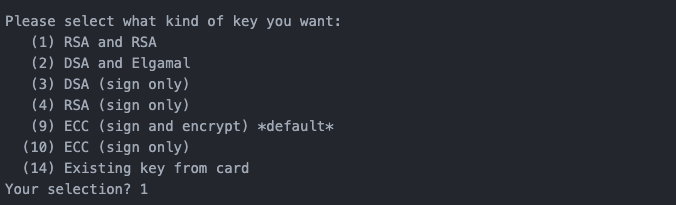
Step 2: Set the key type
Select 1 to generate an RSA public and private key pair, as shown in the example.
Step 3: Set the key length
Enter 2048 bits, as specified in the existing integration guidance. Confirm the currently accepted key length with Nium.

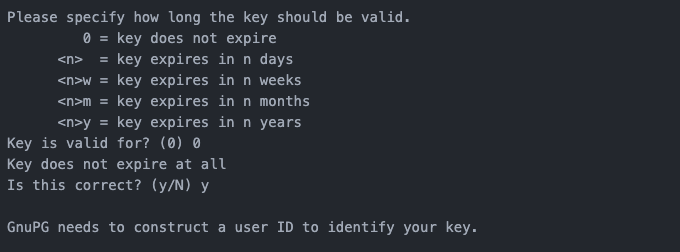
Step 4: Set the expiration time
Choose the key's validity period. The previous instructions used 0 for a key that does not expire; confirm the current expiration and rotation policy with Nium before selecting this option.
Step 5: Enter key owner details
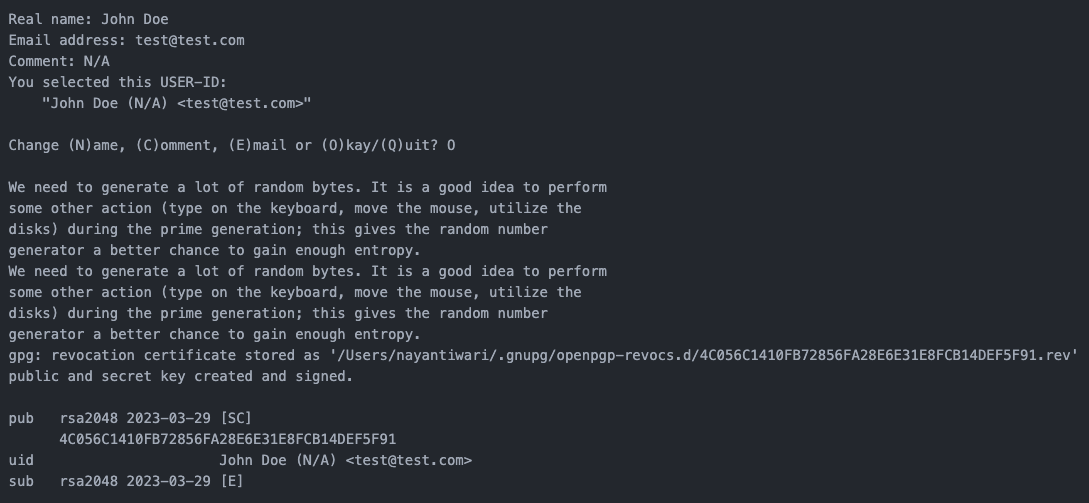
Provide the requested details:
- Name of the key owner
- Email address of the key owner
- Optional comments for future reference
Step 6: Set a passphrase
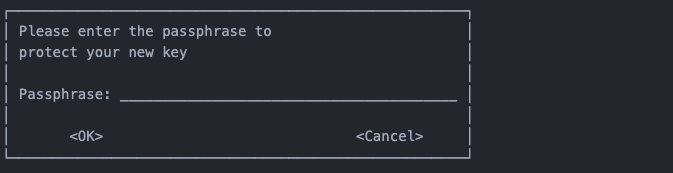
Set a strong passphrase to protect your private PGP key. Store it securely and do not share it with Nium.
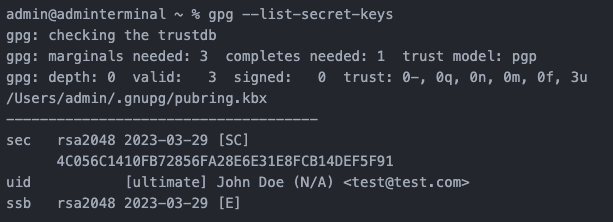
Step 7: List the key
Run gpg --list-secret-keys to list the generated secret keys.
Export PGP keys
After generating your key pair, follow these steps to export the keys. Only the public key should be shared with Nium.
Step 1: Export your public PGP key
Run:
gpg --output company-pgp-public-key.key --armor --export cards.admin@company.com
Replace cards.admin@company.com with the email address associated with your key. This creates company-pgp-public-key.key in the current working directory.

Step 2: Export your private PGP key
If you need a private-key backup for your own secure key-management process, run:
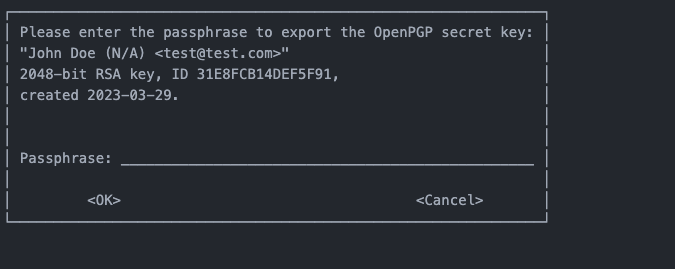
gpg --output company-pgp-private-key.key --armor --export-secret-key cards.admin@company.com
When prompted, enter the passphrase you set for your private key. The command creates company-pgp-private-key.key in the current working directory.
The exported private key is sensitive. Store it securely, restrict access, and never send it to Nium or include it in support requests.

Step 3: Contact Nium to configure your public PGP key
Contact your Nium account manager or Nium Support to arrange secure submission of your public PGP key.
Nium will configure the applicable key information for your client resource and confirm any required IP allowlisting or additional integration steps.