 Build faster with AI — Get started with the Nium MCP Server
Card Lifecycle
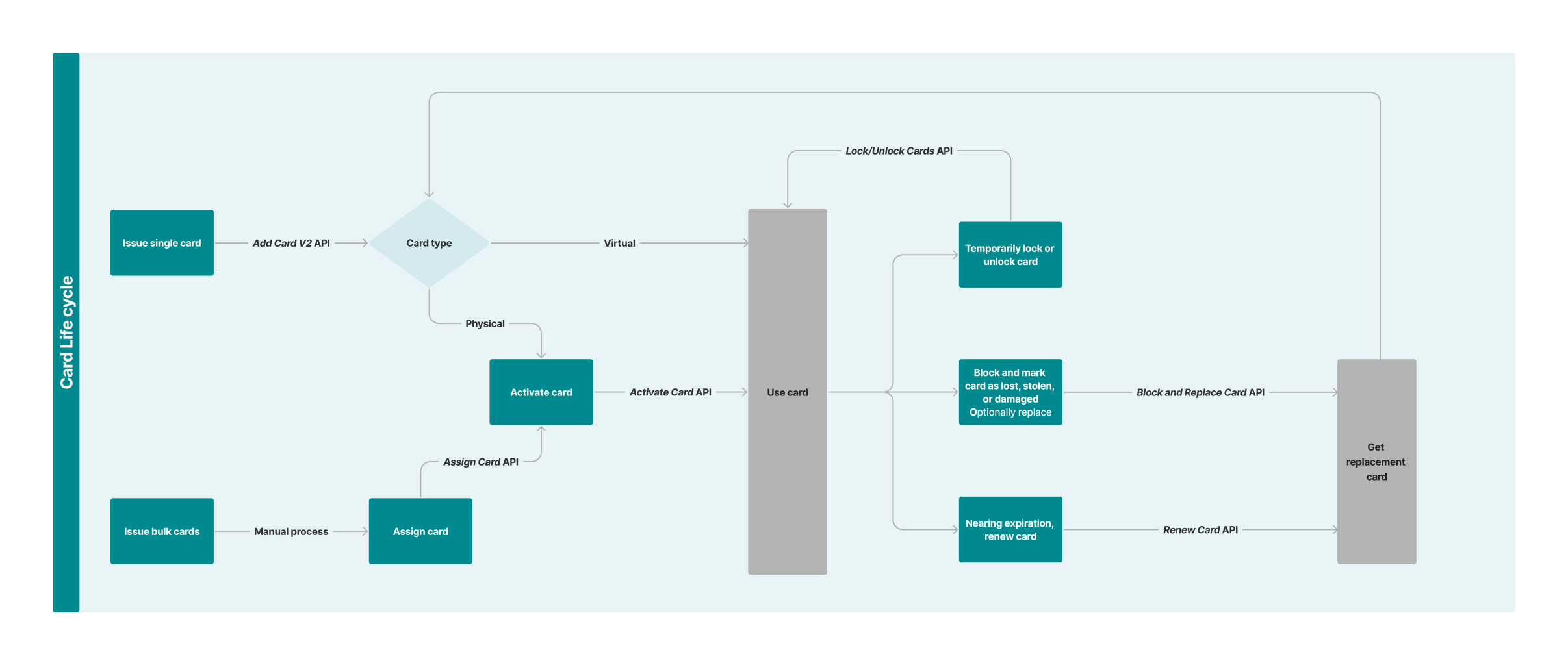
The Nium One platform provides APIs to manage a card throughout its lifecycle, from issuance and activation to locking, blocking, replacement, and renewal. The following diagram illustrates the lifecycle stages and associated APIs.
Card activation statuses
The following activation status values have been confirmed by Nium Engineering.
| Status | Description |
|---|---|
INACTIVE | A physical card that has been issued but not yet activated. This is its initial activation status. |
VIRTUAL_ACTIVE | A virtual card that can be used immediately after issuance. |
ACTIVE | A card that has been activated, unblocked, or unlocked. |
TEMP_BLOCK | A card that has been temporarily blocked using V1 or locked using V2. |
P_BLOCK | A card that has been permanently blocked. The block date is also recorded. |
CARD_EXPIRED | A card marked as expired by the expiry job. Expired cards are excluded from card lookups and 3DS. |
Card renewal is a lifecycle operation, not an activation status. Following renewal, the card's activation status returns to INACTIVE until it is activated again.
Add a new card
The platform lets you issue cards in real time to individual and corporate customers. Cards must adhere to the approved use cases and attributes defined during client onboarding. Your Nium account manager provides a cardProductId unique to your program and aligned with these attributes.
Use the Add Card V2 API to issue a card to your customer.
On successful card issuance, Nium generates a cardHashId, the card's unique identifier.
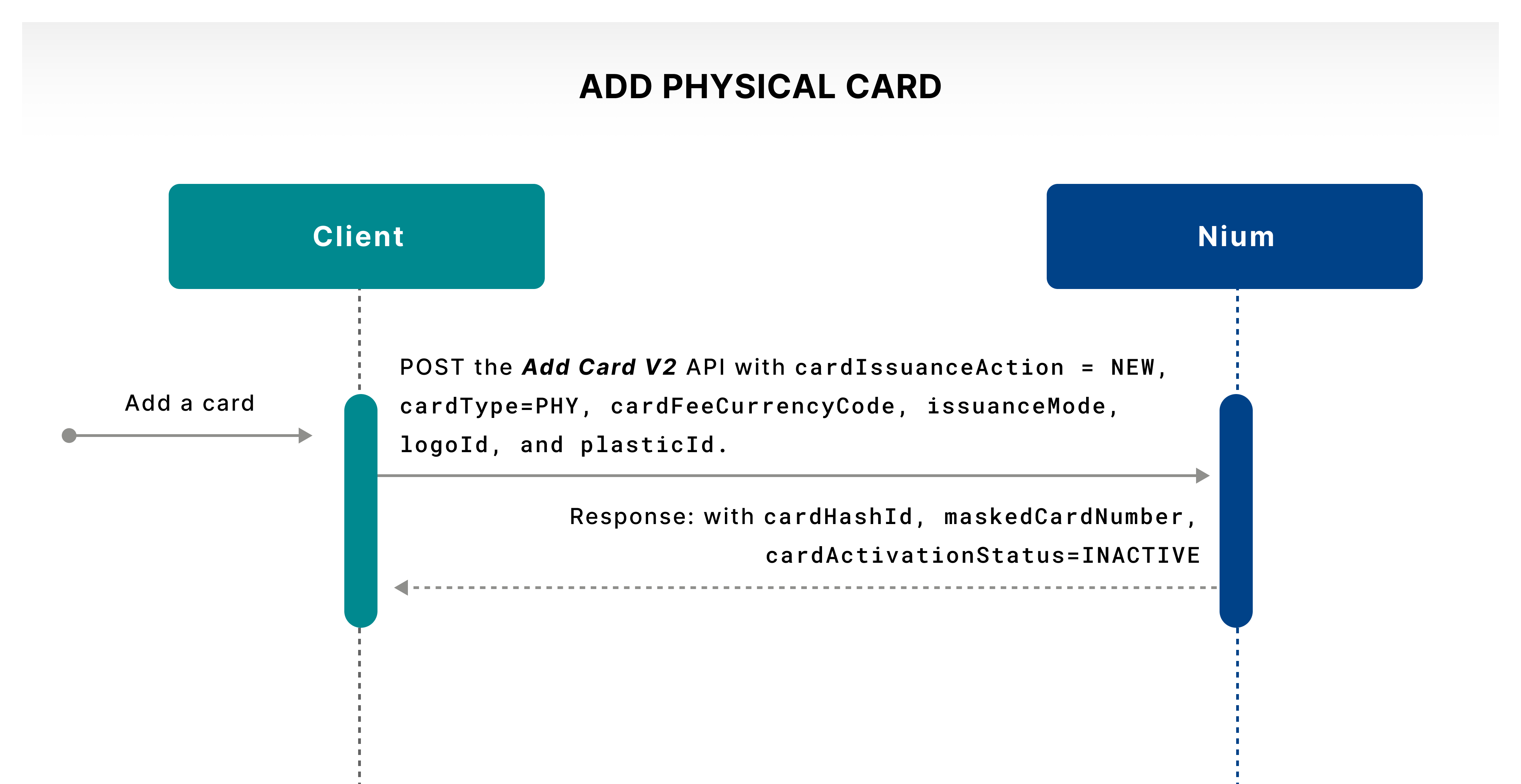
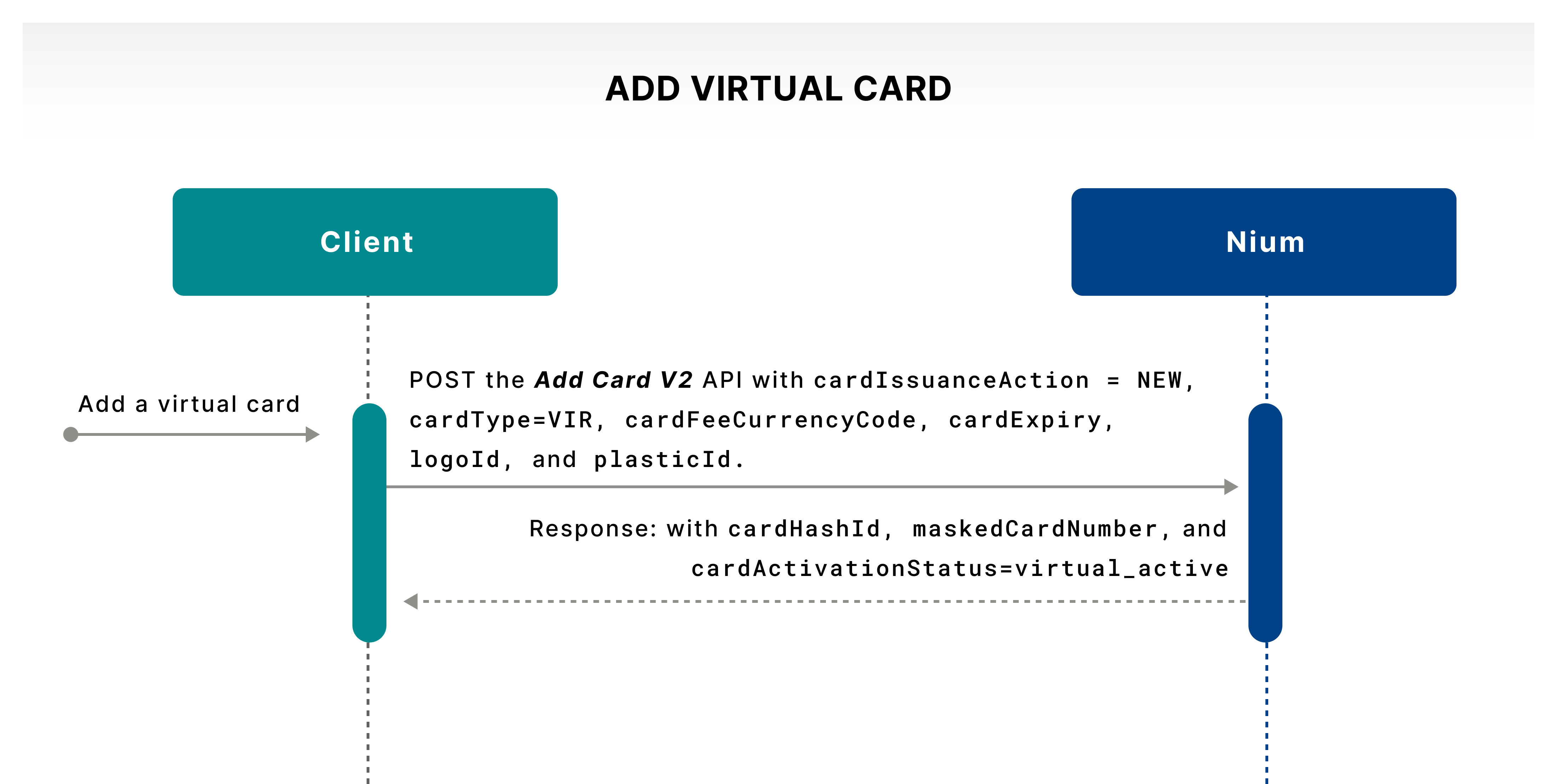
The API allows you to specify the following fields:
| Field | Description |
|---|---|
cardExpiry | Expiration date for virtual cards only, in MMYY format. The maximum expiry is five years from the API request. |
cardType | PHY for a physical card, VIR for a virtual card, or VIRUP2PHY for a virtual card upgraded to physical. |
nameOnCard | Name printed on the card. Supports alphanumeric characters and spaces, up to 26 characters. If empty, the first printed line is omitted. |
additionalLine | Company name or employee ID printed below the cardholder name. Supports alphanumeric characters and spaces, up to 26 characters. |
email | Cardholder email address. |
countryCode | Two-letter ISO Alpha-2 country code for the cardholder's phone number. |
mobile | Cardholder mobile phone number. |
issuanceMode | Physical-card delivery option: NORMAL_DELIVERY_LOCAL, EXPRESS_DELIVERY_LOCAL, or INTERNATIONAL_DELIVERY. |
plasticId | Identifier provided by Nium for the card design configured for your program. |
delivery | Object containing the physical card's delivery address details. |
Issue cards in bulk
The platform supports bulk issuance of physical cards in two scenarios:
- Issuing and delivering multiple cards without assigning cardholders at the time of issuance.
- Issuing and delivering multiple personalized cards with cardholder names.
Nium's Card Operations team can help coordinate bulk card orders, while the Solutions team supports the integration and implementation process.
Assign a card
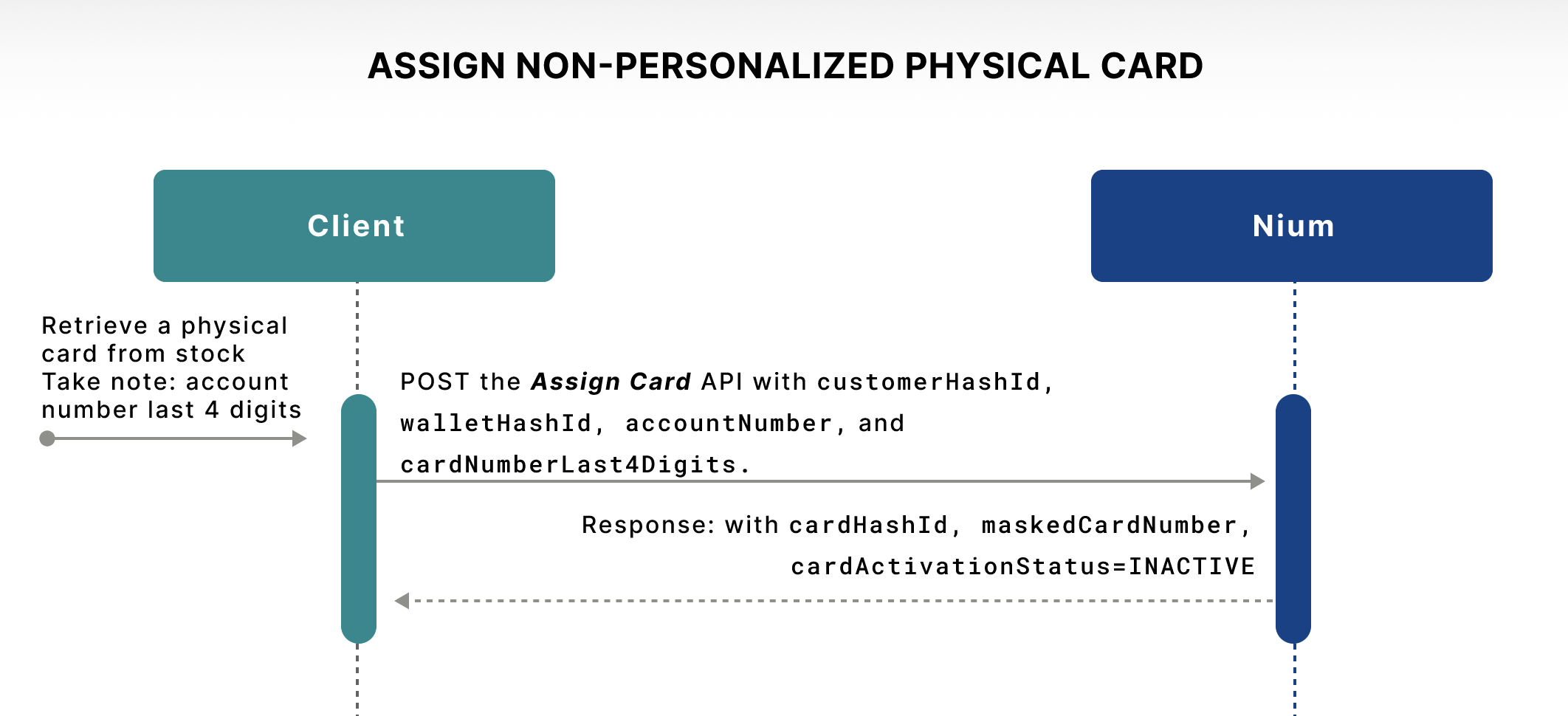
When you receive a bulk order containing non-personalized cards, you must assign each card to a customer in Nium before it can be used.
Use the Assign Card API to assign a card to a customer. The customer can then receive and activate it.
Activate a physical card
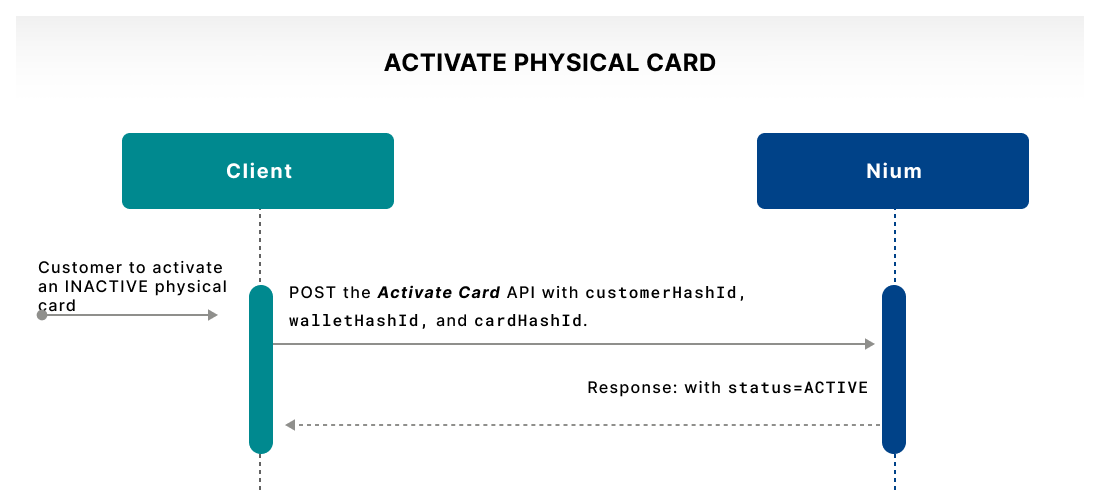
Physical cards must be activated after delivery to help prevent misuse during transit. The relevant activation statuses are:
INACTIVE: A newly issued physical card awaiting activation.VIRTUAL_ACTIVE: A virtual card that is already usable. Where a virtual card is upgraded to a physical card, confirm the applicable physical-card activation requirements for your program.ACTIVE: A card that has been activated.
Use the Activate Card V2 API to activate an eligible physical card and change its status to ACTIVE.
You can incorporate additional customer verification, such as personal information or biometrics, into your application's activation experience.
Manage a card state
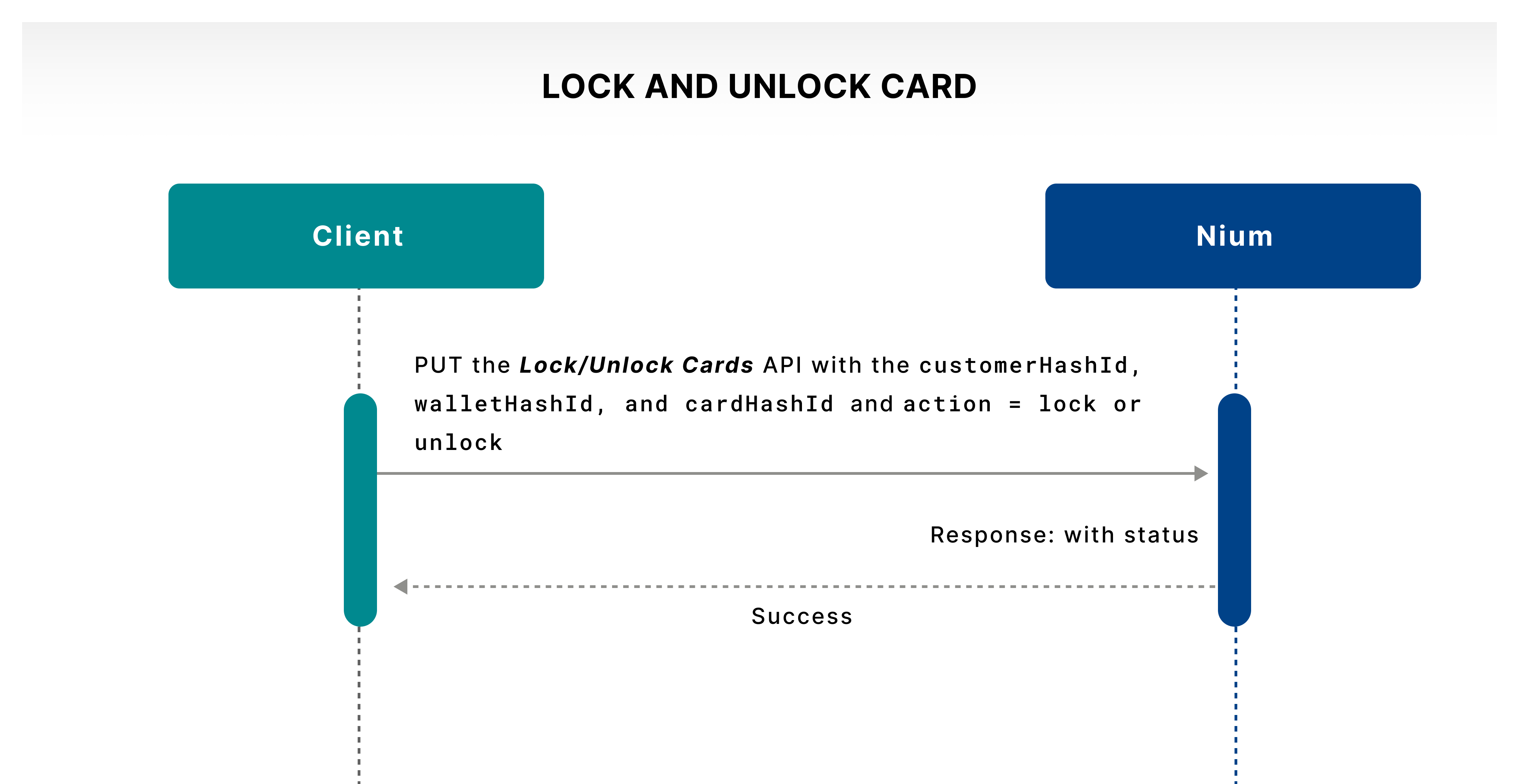
Customers may need to lock a card temporarily because of suspected fraud, loss, or other security concerns, and unlock it when appropriate.
Use the Lock/Unlock Cards V2 API to lock or unlock a card.
- Lock: The card's activation status becomes
TEMP_BLOCK. - Unlock: An eligible locked card returns to
ACTIVE.
TEMP_BLOCK is the activation status used for a temporary block in V1 and a lock in V2. It is not a separate LOCKED status.
Block and replace a card
Customers may need to permanently block a card because of fraud, loss, theft, or damage. A permanently blocked card has the activation status P_BLOCK, and Nium records the block date.
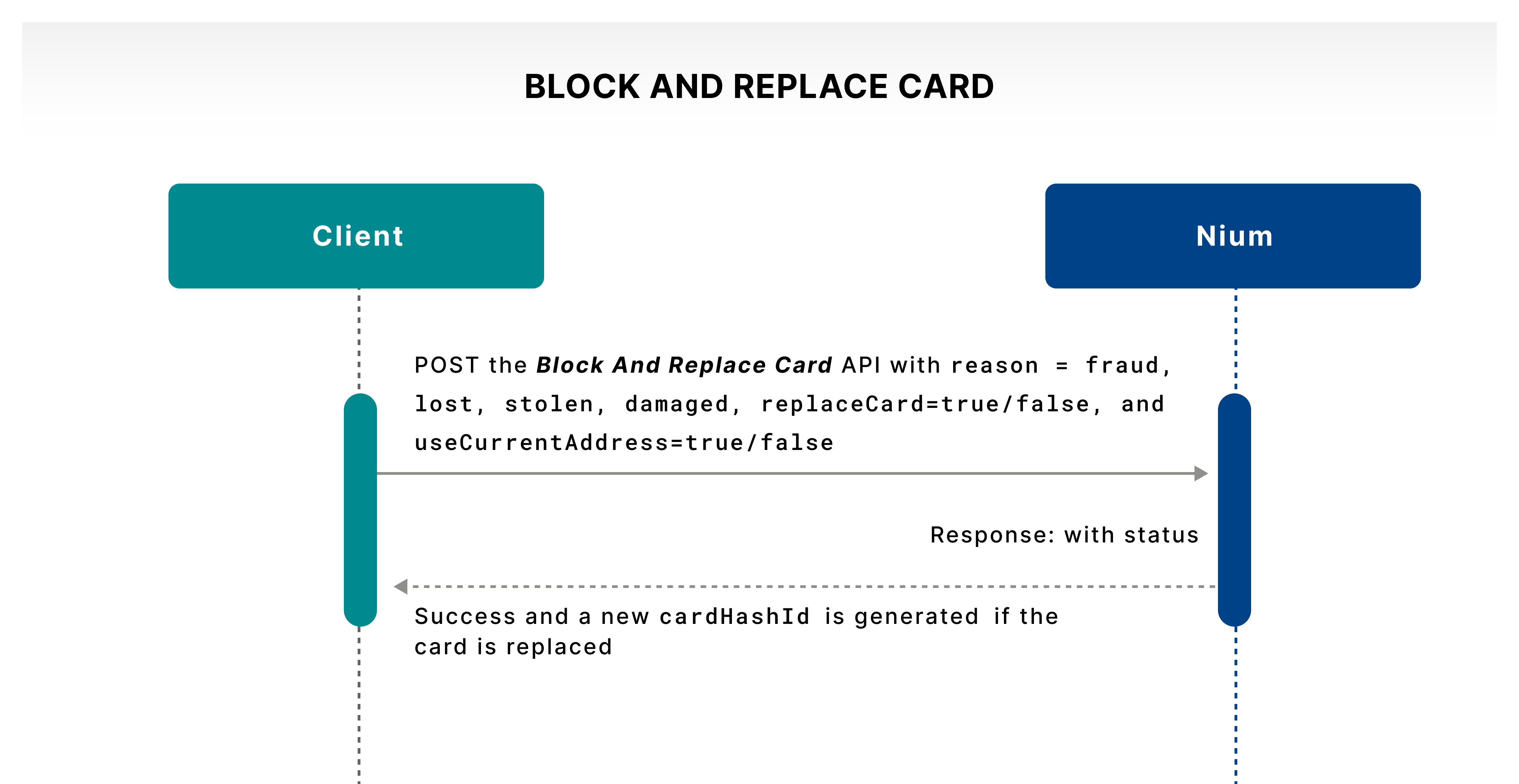
Use the Block And Replace Card V2 API to block a card and optionally request a replacement. Replacement details can include the expiry date, email address, mobile number, and delivery address. The replacement card receives a new primary account number (PAN).
A permanent block is not the same as a temporary lock. Do not present a permanently blocked card as eligible for the standard unlock operation.
Renew a card
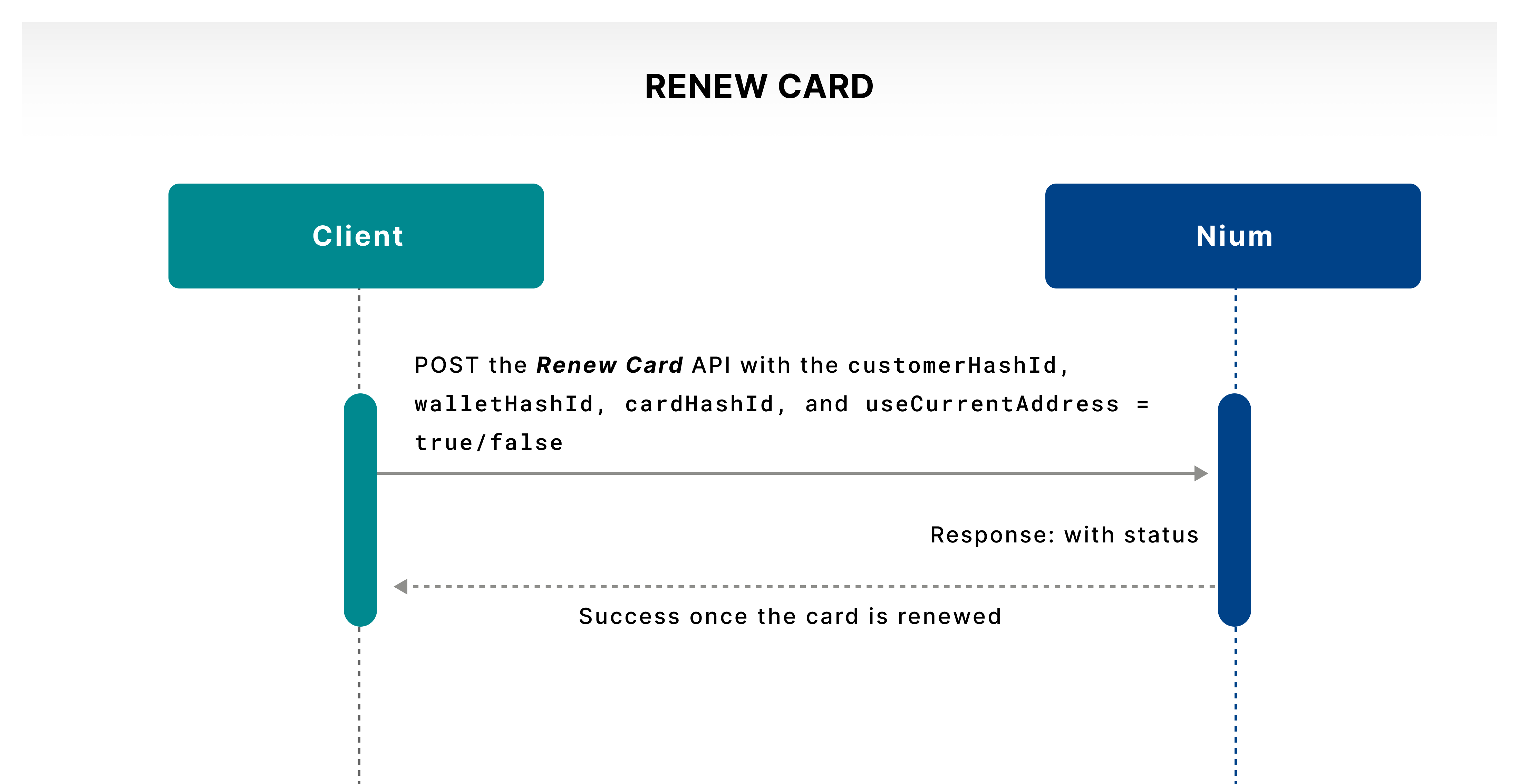
When a customer's card approaches expiry, use the Renew Card API to request a renewal.
The renewal process retains the same PAN but issues a different expiration date and CVV2. The API also allows you to provide the same or updated delivery address and contact details.
Renewal is an operation, not a card activation status. After renewal, the activation status returns to INACTIVE until the card is activated again.
Next steps
After issuing, activating, replacing, or renewing a card, explore these related guides:
- Manage Cards — Manage card settings, spending limits, and restrictions.
- Card Security — Manage PINs, retrieve card details securely, and review other card security operations.