 Build faster with AI — Get started with the Nium MCP Server
Card Widget
The Card Widget lets you display sensitive card details in your web page or mobile application using a widget hosted by Nium. Your application requests a widget URL from Nium and embeds the hosted view instead of rendering card details directly.
Use the Get Card Details Widget API to request the widget URL.
Using a Nium-hosted widget can reduce the need for your application to handle sensitive card details directly. It does not automatically remove all PCI DSS obligations. Confirm the applicable requirements for your integration with your security and compliance teams.
How the widget works
- Your application requests a card details widget using the applicable client, customer, wallet, and card identifiers.
- Nium returns a hosted widget URL containing a token.
- Your application embeds the URL in its interface so the cardholder can view their card details.
The widget is hosted by Nium. The card details displayed within it are not editable or directly copyable through the widget, as described for this integration.
The widget URL and token are documented as valid for 10 minutes. Request a new URL when the previous URL expires. Confirm the exact expiry behavior with Nium before relying on it for session management.
Integrate the card widget
Step 1: Get the widget URL
Call the Get Card Details Widget API.
Example response (illustrative URL; token shortened):
{
  "widgetURL": "https://ipppreprod.partners.instarem.com/preprod/cards/widget/cardDetails?token=eyJhbGciOiJIUzI1NiJ9...pEqF4g6d"
}
The token shown above is truncated for readability. The actual response contains a complete token. Use the URL returned by the API rather than constructing it yourself.
Treat the widget URL and embedded token as sensitive, short-lived credentials. Avoid recording them in application logs, analytics, or other systems that do not need access. Do not hard-code the example preproduction URL into your integration.
Step 2: Embed the widget in your application
Use the widgetURL returned in Step 1 as the src of an iframe on your web page. The following example assumes your application has already obtained the URL securely.
<iframe
  id="nium-card-widget"
  title="Card details"
  width="550"
  height="300"
  style="border: 0; max-width: 100%;"
></iframe>
// widgetURL is the value returned by the Get Card Details Widget API.
const iframe = document.getElementById('nium-card-widget');
iframe.src = widgetURL;
Adjust the iframe dimensions to suit your application layout. Do not attempt to read or manipulate the sensitive contents of the Nium-hosted iframe.
Default widget appearance
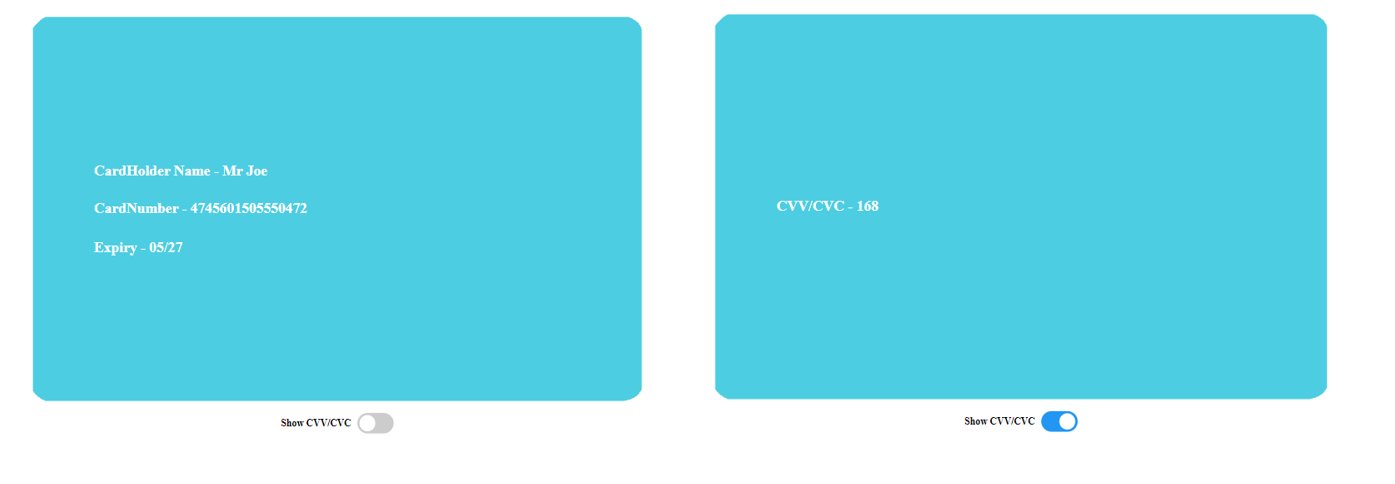
Step 3: Configure optional card artwork
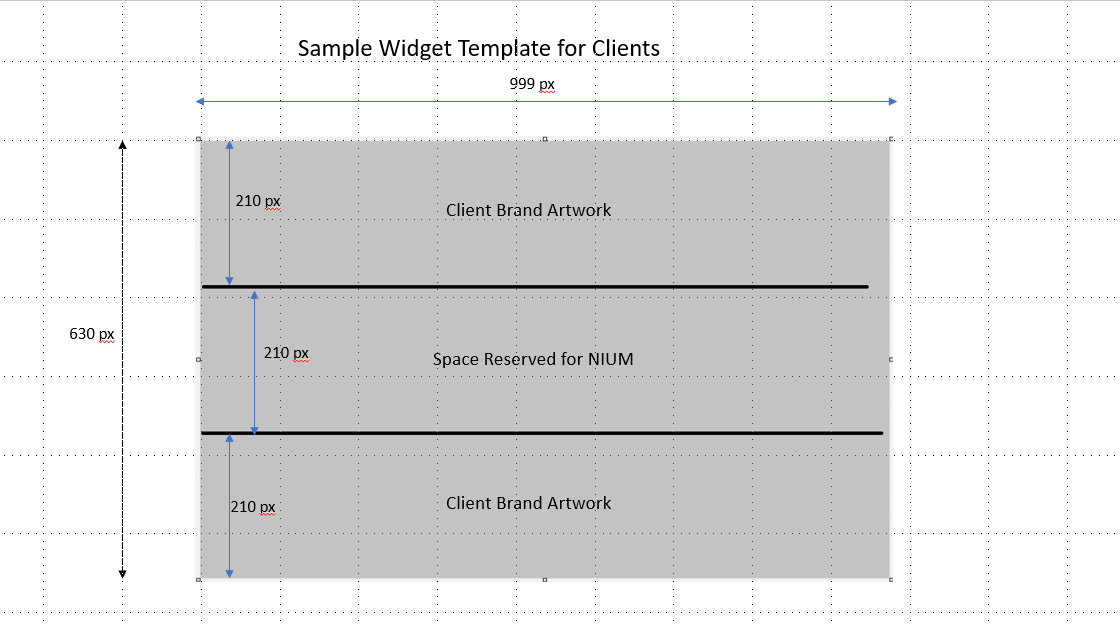
To display your own card artwork as the widget background, contact your Nium representative. The original guide specifies that one artwork design is associated with each plasticId.
| Artwork requirement | Specification |
|---|---|
| Maximum file size | 1 MB |
| Image dimensions | 999 × 630 pixels |
| Resolution | 144 dpi |
| Accepted formats | PNG, JPG, JPEG |
| Text color | White only |
| Custom design areas | Top 210 pixels and bottom 210 pixels |
Artwork template
Example widget with Nium branding

Implementation considerations
- Token expiry: Request a fresh widget URL when the previous URL is no longer valid.
- Sensitive information: Do not expose widget URLs or tokens in logs, error reports, or analytics.
- Client-side display: Embed the hosted widget rather than copying sensitive card data into your application's own page elements.
- Artwork: Coordinate custom artwork and the applicable
plasticIdwith your Nium representative.