 Build faster with AI — Get started with the Nium MCP Server
CA Onboarding
This page contains details of the Canada (CA) KYB flows with the following sub-pages for quick reference:
| Page name | Description |
|---|---|
| CA required parameters | This page lists the required API fields of each entity type for an eKYB verification. |
| CA required documents | This page contains tables listing the required documents to verify the business entity, stakeholders, and applicants. |
| CA position mapping | This page gives a quick glance at the required positions of each entity type. |
| CA request examples | This page contains API request examples for CA entities. |
Nium offers Manual KYB flows for customers in Canada.
Manual KYB Flow
The following steps need to be performed for completing an application via Manual KYB.
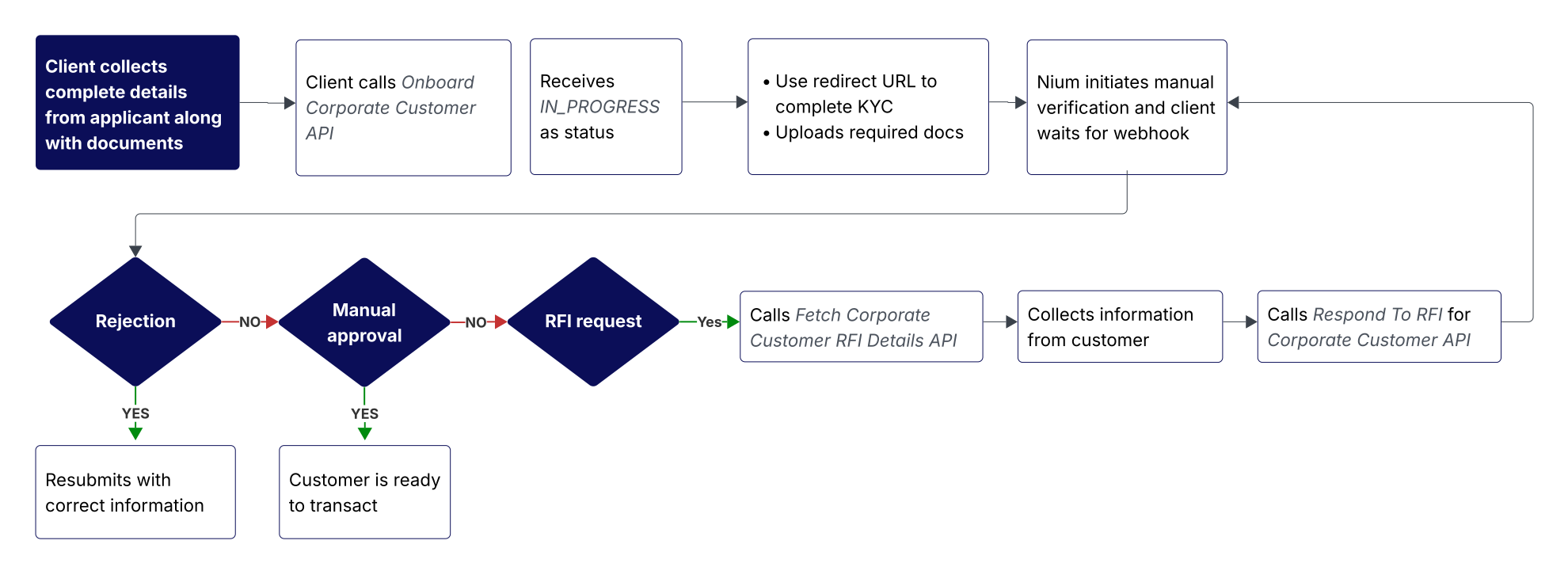
For Manual KYB, you need to call the Onboard Corporate Customer API directly. In this flow, the entire request body needs to be passed in the Onboard Corporate Customer API.
Onboard Corporate Customer API
You need to collect all the details required to call the Onboard Corporate Customer API through an onboarding form and call the API with the full request body.
Applicant KYC
The E_KYC, E_DOC_VERIFY, and MANUAL_KYC are supported for applicants for eKYB flow in Canada. For applicants, you
pass E_KYC (for CA residents) or E_DOC_VERIFY (for non-CA residents) in businessDetails.applicantDetails.kycMode.
If required, the client can make use of theMANUAL_KYC for non-CA residents; however, uploading of documents is
required for Manual KYC which needs to be sent in businessDetails.applicantDetails.documentDetails. For details, see
HK required documents for applicants.
The uploading of documents is mandatory for MANUAL_KYC which has to be sent in
businessDetails.applicantDetails.documentDetails.
See CA required documents for
details.
Applicant eDocVerify
As a response to the Onboard Corp Customer API, Nium returns a redirect URL. You need to save this URL and redirect the applicant to the redirect URL. The applicant then lands on the KYC vendor's page, where he can complete the KYC verification by uploading his proof of identity and proof of address documents with a live selfie. After that, applicants are redirected back to your client KYC redirect URL that was configured with Nium.
Redirection can result in the following scenarios, based on the below parameters.
errorCodeerrorMessageisSuccess– This field indicates if the applicant completed the required steps in the vendor’s UI. It doesn't mean KYC is successful.
| Scenario | Expected action from client | Query parameters in the redirection |
|---|---|---|
| The applicant completed the required steps in the vendor’s UI. | Wait for webhook. | errorCode: N/A errorMessage: N/A isSuccess: TRUE |
| The document has already been submitted in the vendor's UI. | KYC Process is completed. Client needs to wait for webhook. | errorCode: R403 errorMessage: documentAlreadySubmitted isSuccess: FALSE |
| The customer has provided incorrect data in the vendor's UI. | Ask customer to submit correct data in the vendors page. | errorCode: I400 errorMessage: vendorValidationError isSuccess: FALSE |
| Verification failure at the vendor. | The application goes to manual review. The client needs to wait for webhook. | errorCode: R401 errorMessage: vendorVerificationFailure isSuccess: FALSE |
| Internal Server error at Nium. | Try after some time or reach out to Nium's support. | errorCode: R500 errorMessage: internalServerError isSuccess: FALSE |
| Any unexpected error from the vendor. | Try after some time or reach out to Nium's support. | errorCode: I500 errorMessage: unexpectedError isSuccess: FALSE |
| Validation already completed and customer retries the same link. | KYC Process is completed. The client need to wait for webhook. | errorCode: R606 errorMessage: verificationAlreadyCompleted isSuccess: FALSE |
Based on the scenario, you can implement the next steps as provided in the table above.
Example of a redirect to the client in a successful case
https://www.clientRedirectURL.com/?clientId=NIM1681898211881&caseId=4ff53849-3d30-45c8-af11-

f95c315ce83c&isSuccess=true&errorCode=&errorMessage=
Example of a redirect to the client in a failed case
https://www.clientRedirectURL.com/?clientId=NIM1681898211881&caseId=4ff53849-3d30-45c8-af11-

f95c315ce83c&errorCode=R408&errorMessage=redirectURLExpired&isSuccess=false
When the applicant's businessDetails.applicantDetails.address.country is US, the applicant's address' state needs
to be a valid 2 letter state code. Use
the Fetch corporate constants
API for acceptable values.
When the applicant's businessDetails.applicantDetails.address.country is GB, the applicant's postcode needs to be
in the SW4 6EH format.
Upload documents
Document upload is required for Business and for the applicant if the kycMode is MANUAL_KYC
Documents can be submitted either of two ways:
- As part of the Onboard Corporate Customer request
- Using the Upload Document request
The Upload Document
API is preferred since it uploads one document at a time, which reduces the loading time. This API can be called only
while the application is in the IN_PROGRESS state.
You can use the remarks field to list which documents Nium is expecting, in the response of both APIs.
The API gateway has a limit of 10 MB for any API request. This makes Upload Document API the preferred way to upload documents since you can upload one document at a time.
For the entire list of required documents for manual KYB and eKYB flows, see CA required documents.
Applicant Declaration
CA applicant declaration must happen in the following way.
While building the form, you should ensure that the applicant declaration is a checkbox that is collected on a separate page after the applicant has already filled in the Stakeholder information. This page should show the list of all stakeholders in view mode. The applicant declaration text should imply the following statements objectively:
- The List of UBOs and their details provided are true and verified by the applicant
- The List of directors and their details provided are true and verified by the applicant
- All the other information provided by the applicant is true and verified.
I certify that I am the authorized representative of the customer; all information provided and documents submitted are complete and correct. I confirm that I have provided all the UBOs and directors or equivalent positions available. I have read and accepted the Nium Terms and Conditions.
You can accept this through a clickwrap and send Nium the confirmation by passing
businessDetails.applicantDetails.additionalInfo.applicantDeclaration='Yes'. This is a mandatory field, and passing any
other value would result in a validation error. You can show the below text while accepting the clickwrap.
Stakeholder KYC
Stakeholder KYC is not required in Canada. You can ignore the businessDetails.stakeholders.stakeholderDetails.kycMode
field.
After submission and completion of applicant KYC in case of E_DOC_VERIFY, and submission of required documents, the
status in the response of the Onboard Corporate customer is IN_PROGRESS. Nium initiates real-time verification and
sends the response via webhook. The application can get approved at this stage; and if it isn't approved, the
application goes through manual review. Any changes in status is again communicated via webhook.
For the next steps to take to onboard your customer, see the response returned in the webhook.
Terms and Conditions
You must show customers the Nium terms and conditions configured for your client resource. You can fetch these
specific terms and conditions using
our Terms And Conditions API.
Customers can only submit the onboarding form once they accept the terms and conditions.
To fetch the Terms And Conditions API:
- Wait for the Onboarding API to return a
customerHashId. - Once returned, call
our Accept Terms and Conditions API
and include the
customerHashId. - Show the customer the returned terms and conditions and record their acceptance before allowing them to transact.
For more details, see Terms and Conditions.