 Build faster with AI — Get started with the Nium MCP Server
Customer Funding
Funding
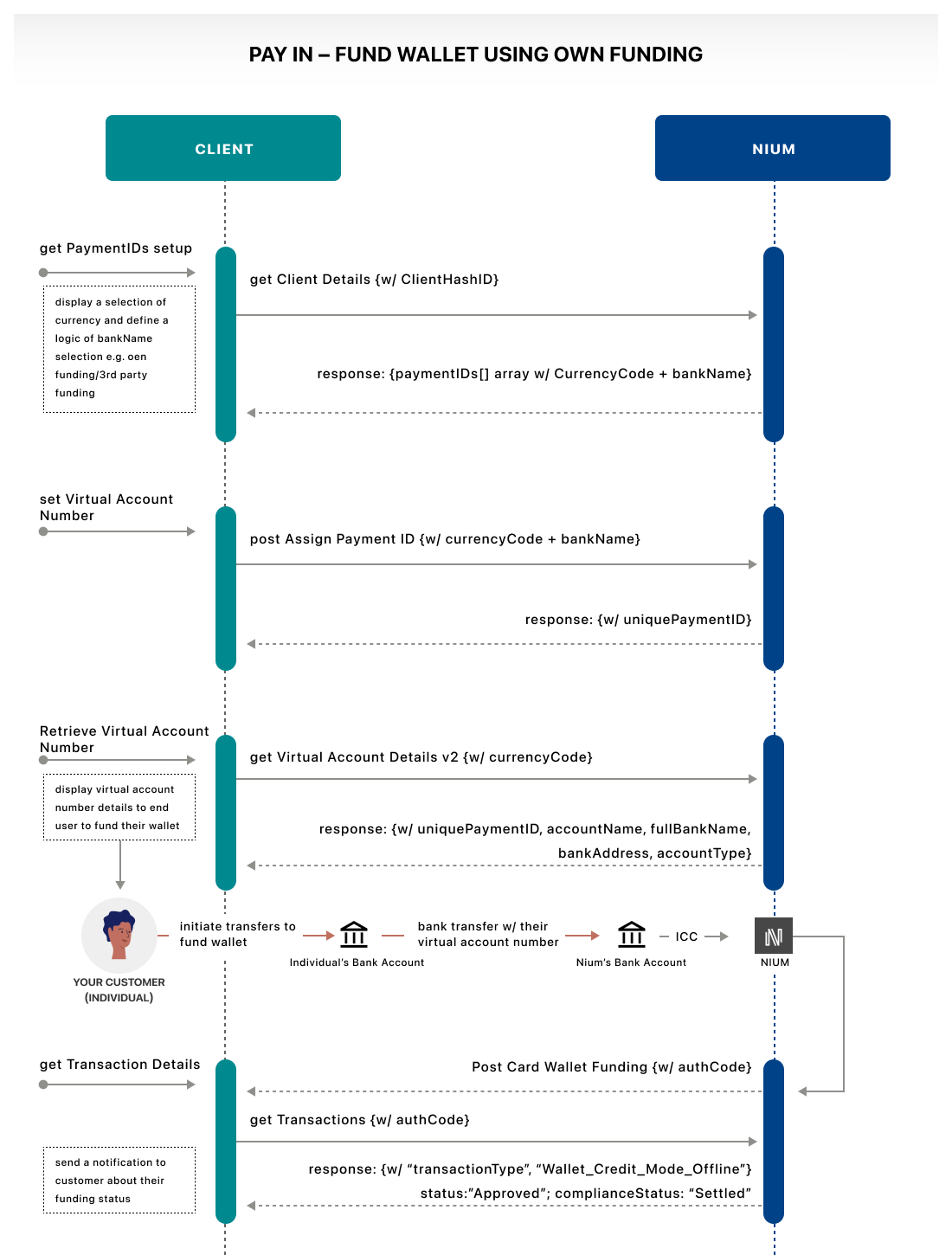
Your customers and you can fund your own wallet. Start by creating a Virtual Account Number (VAN).
- Use the Fetch Client Details request to confirm which
currencyCodeandbankNamevalues are available. - Use
the Assign Payment ID
request to create a
paymentIdfor your customer or for your wallet.- The
paymentIdrepresents your VAN. - Include the
currencyCodeandbankNameyou want thepaymentIdto use.
- The
- Fetch the VAN details using the Fetch Virtual Account Details V2 request.
After you've created a VAN:
- Transfer funds from your financial institution to your Nium wallet using the VAN details.
- Nium's financial institution confirms the credit through Inward Credit Confirmation (ICC). An authorization code (
authCode) is returned once the transfer begins. - Use the
authCodeto fetch the transaction using the Fetch Transactions request. When complete:statusis ApprovedcomplianceStatusis Settled
Collections
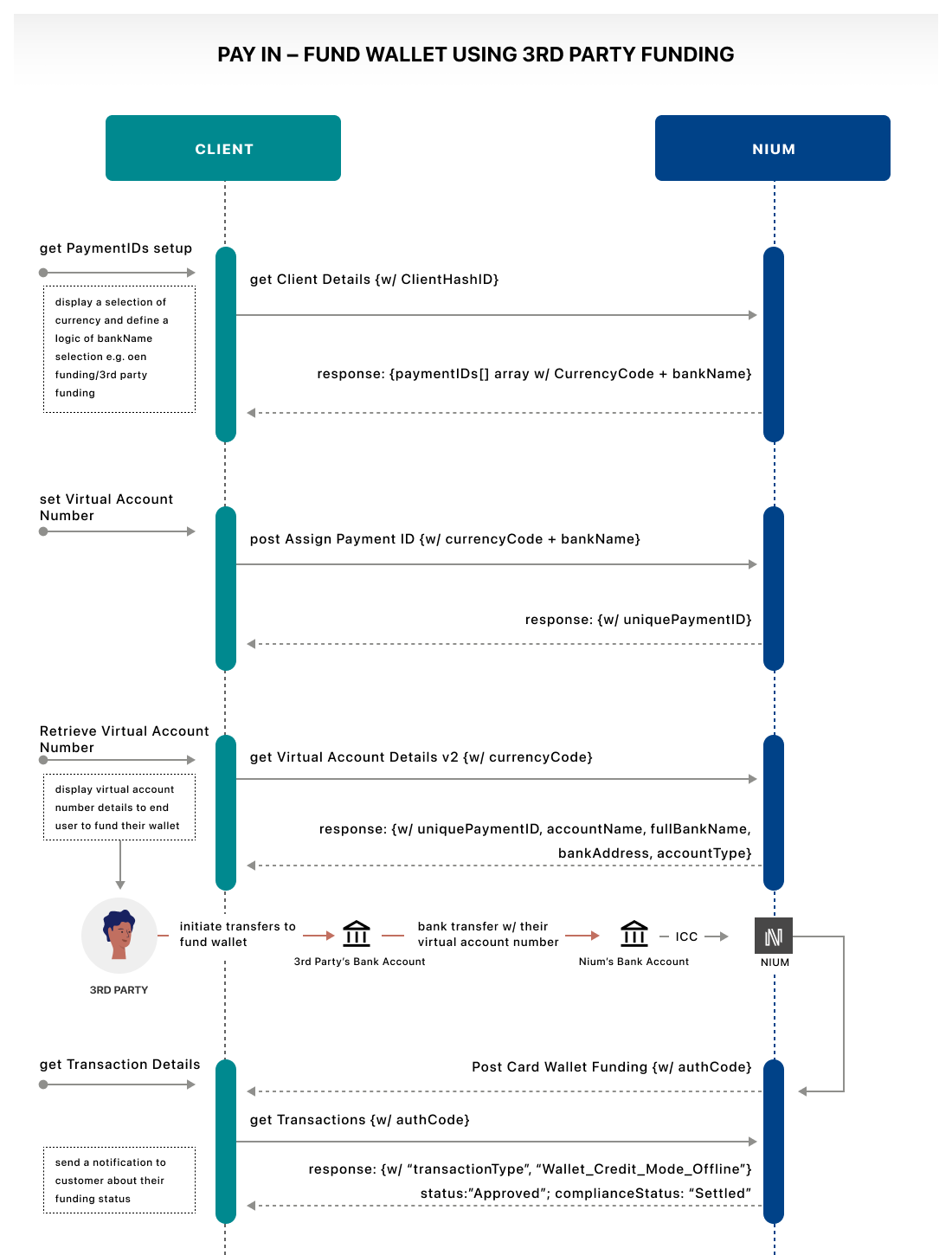
Accept wallet funding from a customer, partner, vendor, or other external account. Start by creating a Virtual Account Number (VAN):
- Use the Fetch Client Details request to confirm which
currencyCodeandbankNamevalues are available. - Use
the Assign Payment ID
request to create a
paymentId.- The
paymentIdrepresents your VAN. - Include the desired
currencyCodeandbankName.
- The
- Fetch the VAN using the Fetch Virtual Account Details V2 request.
After the VAN is shared:
- The third party sends funds to your wallet using the VAN details.
- Nium's financial institution confirms the credit through ICC, and an
authCodeis returned. - Use the
authCodewith the Fetch Transactions request to fetch the status of the transfer.- When complete:
statusis ApprovedcomplianceStatusis Settled
- If webhooks are configured, you also receive the Wallet Funded webhook on success.
- When complete:
Fund wallet using a card
To fund a wallet using a card, after a successfully completing onboarding through Electronic Know Your Customer (eKYC):
- Use the Fund Wallet request using a debit or credit card as the funding method.
- Nium provides a
returnUrlto complete 3D Secure One-Time Password (3DS OTP) verification.- If 3DS fails, the transaction is restarted.
- If successful, redirect the customer to your predefined return URL.
URL format:
https://<client_URL>/wallet/fund/{systemReferenceNumber}
- Use the
Fetch Transactions
request with the
systemReferenceNumber={authCode}query parameter. Include theauthCodereturned through ICC.- If the
statusis Approved or Declined, the transaction ends. - If the
statusis Pending, wait for the Wallet Funding webhook to confirm the transfer.
- If the
Fund wallet using direct debit
For details on how to fund a wallet using direct debit, see Direct Debit.
Funding wallets around the world
Funding flows around the world can differ depending on the country and local currency. The following highlights important regional requirements for wallet funding.
Brazil
Nium enables clients and corporate customers in Brazil to fund wallets locally in BRL, reducing costs and improving transaction speed.
Please note, local funding is only available for corporate customers with a valid CNPJ (Cadastro Nacional da Pessoa Jurídica).
- The CNPJ can be provided during onboarding in the
taxDetailsobject using the Onboard Corporate Customer request. - You can also add CNPJ details to the
customerat a later time using the Update Corporate Customer request.
If you're planning to enable BRL funding, make sure your onboarding flow collects this information to avoid any interruptions.
Please note, only wallet funding is supported in BRL. Collecting funds from a third party is not supported.
Supported payment methods
No transaction limits are in place for payment methods in Brazil.
| Method | Speed | Availability |
|---|---|---|
| PIX | Real-time | 24/7 |
| TED | Same day | Cutoff: 15:00 BRT |
Funding wallets in Brazil
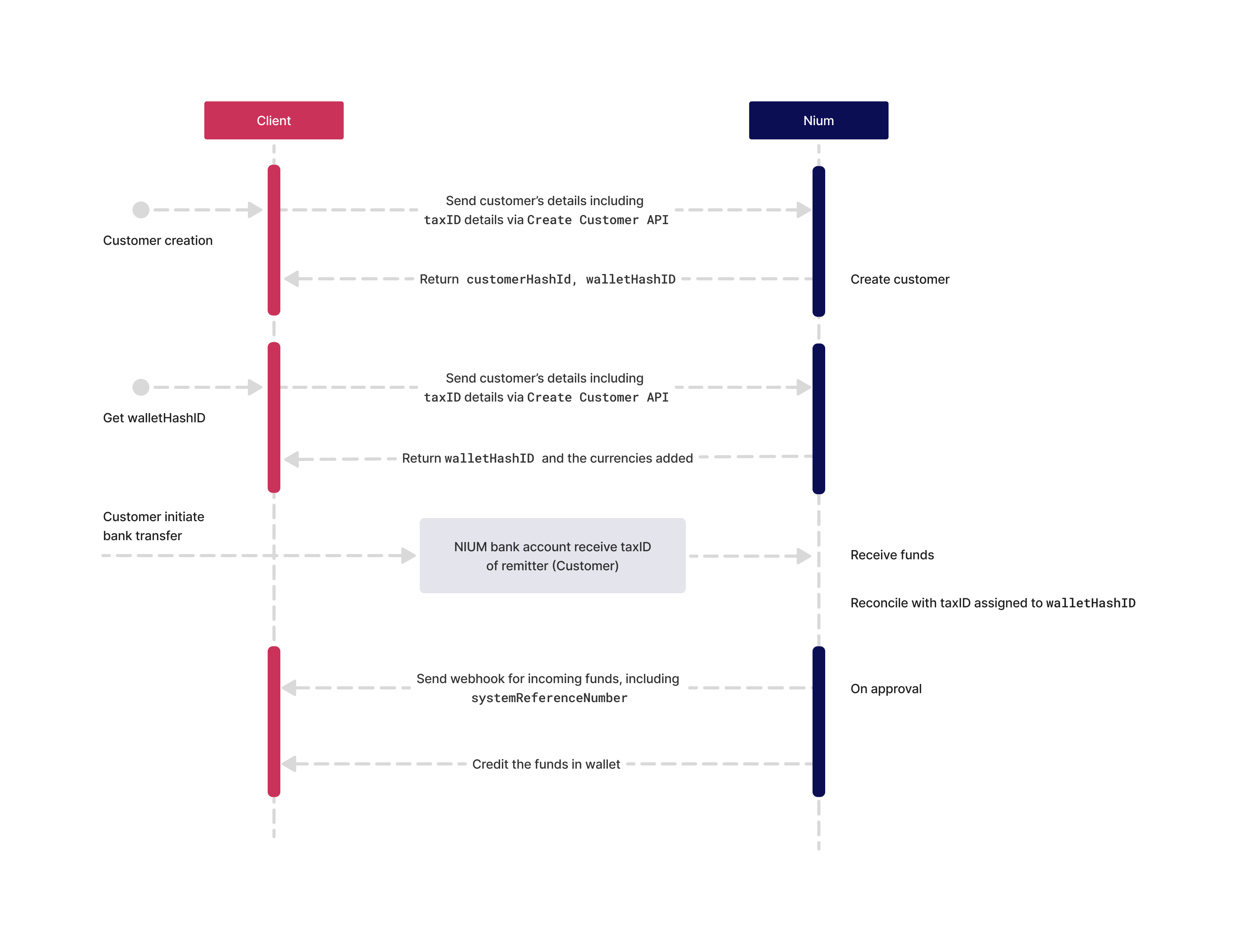
Unlike other currencies, BRL funding does not use a Virtual Account Number (VAN). Instead, use the static bank details provided by Nium and include the customer's CNPJ in the payment reference.
-
Share the following BRL bank details with your customer:
- Account name: NIUM PTE. LTD.
- Account number: 11504943
- Bank name: Banco BS2 S.A.
- Bank code: 218
- Branch: 0001
- Currency: BRL
-
The customer initiates a PIX or TED payment, with their financial institution, from their bank account and includes their CNPJ details in the transaction details.
-
Nium matches the CNPJ in the incoming payment with the CNPJ on file for the customer's wallet.
-
Once matched and reconciled, the customer's wallet is credited in BRL.
For more on onboarding corporate customers, see Corporate Customers.
Singapore
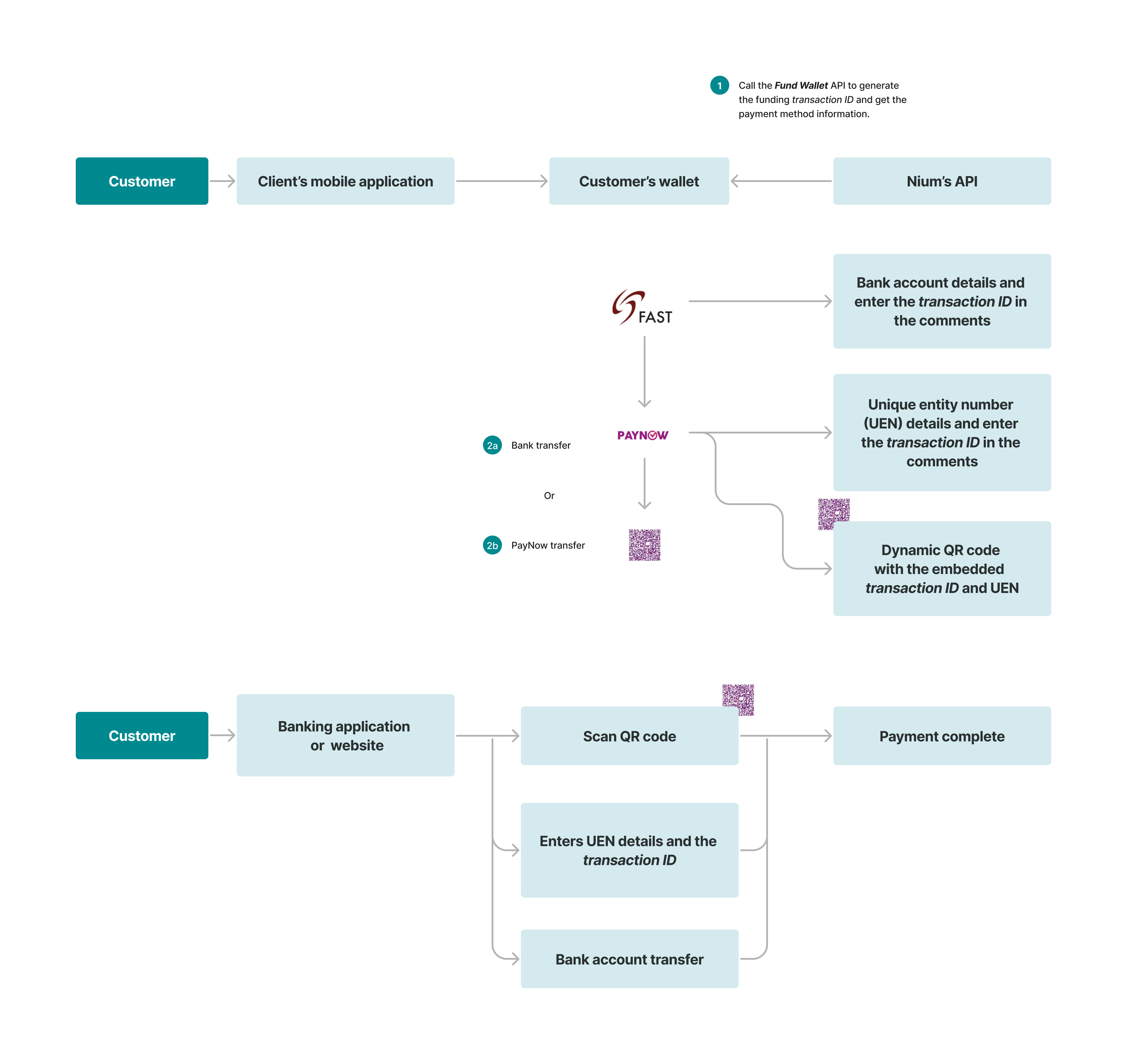
Use Fast And Secure Transfers (FAST) or PayNow to instantly fund a wallet.
Canada - EFT and Interac
Nium enables clients in Canada to fund wallets locally in CAD via:
- Interac e-Transfer
- Electronic Funds Transfer (EFT) via Canadian bank transfer.
These methods allow customers to fund their wallets using local Canadian payment rails.
Funding wallets in Canada via Interac e-Transfer
Nium supports Interac Autodeposit, which allows incoming Interac e-Transfers to be credited directly to the CAD Virtual Account (VA) without requiring the payer to answer a security question. Interac e-Transfers to the VA are supported only when Autodeposit registration has been completed for the linked Interac email. Interac e-Transfers are processed in near real-time: funds are typically credited to the Nium CAD wallet within minutes of the payer's bank releasing the transfer.
Nium supports two configurations for the Interac email linked to the CAD Virtual Account:
- Client-provided email: An existing client-owned email address registered for Interac Autodeposit and linked to the CAD Virtual Account.
- Nium-provided email: An email auto-created by Nium with Interac Autodeposit enabled for CAD funding. Payers use this email as the funding destination for Interac transfers.
Client-provided email
- When requesting the CAD Virtual Account via
the Assign Payment ID
request, provide:
uniquePayerId— the exact email address to use for Interac funding (for example,payments-ca@yourdomain.com)uniquePayerIdType—emailbankName—PATENO_CA
- Nium configures the CAD VA, links the email, and sends an Interac Autodeposit registration email to the address provided.
- The registration email contains a link to complete registration in online banking. The customer opens the email and completes Autodeposit registration. The link is valid for up to 7 days; registration must be completed within this window. The email may land in Spam/Junk depending on the recipient's filters.
- Once registration is complete, the email is enabled for Autodeposit immediately. Payments can then be initiated to this email from any Canadian bank account via Interac e-Transfer.
- Nium credits the Nium CAD wallet in real time on receipt of funds.
Nium-provided email
- When requesting the CAD Virtual Account via
the Assign Payment ID
request, provide
bankName=PATENO_CA. - Nium provisions the email and registers it for Interac Autodeposit. Once the email is registered, Nium sends the Virtual Account Assigned webhook with the virtual account details. Alternatively, the details can be fetched via the Virtual Account Details V2 API.
- The
virtualAccountNumberprovides the local virtual account details to initiate EFT; theuniquePayerIdprovides the unique email address linked to thevirtualAccountNumber. - Payments can be initiated to this email from any Canadian bank account via Interac e-Transfer.
- Nium credits the Nium CAD wallet in real time on receipt of funds.
- Autodeposit registration must be completed before Interac e-Transfers can be received. Transfers sent prior to completion may not be deposited automatically.
- Once an Interac e-Transfer is deposited via Autodeposit, the transaction cannot be reversed.
- Interac e-Transfer is a domestic-only rail and works only between Canadian bank accounts. It does not support international transfers.
- The registration link sent to a client-provided email is valid for approximately 7 days. Ensure the email can receive external messages and check Spam/Junk folders.
Funding wallets in Canada via EFT
EFT uses Canadian domestic rails to send CAD directly to the CAD Virtual Account.
- Request a CAD Virtual Account Number (VAN) via the Assign Payment ID request. For details on what a VAN is and how it works, see Virtual Account Numbers.
- Retrieve the VAN details using
the Virtual Account Details V2
request.
a. The
virtualAccountNumberreturned for Canada EFT is a 17-digit string. For details about its structure, see Currency-specific exceptions. - The customer logs in to their online or corporate banking portal and initiates an EFT payment to the Nium-provided VAN details.
- Funds are received by Nium and reconciled. Nium's financial institution confirms the credit via Inward Credit
Confirmation (ICC). An
authCodeis returned once the transfer begins - use this with the Fetch Transactions request to track the transaction. - Once reconciled, the customer's Nium wallet is credited in CAD. If webhooks are configured, a Wallet Funded webhook is triggered upon successful crediting.
Stablecoin funding
Nium supports USDC funding via Circle Payments, enabling eligible corporate clients to fund their Nium wallets by sending USDC on-chain to a dedicated deposit address. On receipt, USDC is automatically converted to USD and credited to the wallet — no cryptocurrency custody is required on your side.
USDC wallet addresses (deposit addresses) are issued to corporate clients only. Individual customers are not eligible.
Eligibility
| Criteria | Details |
|---|---|
| Customer type | Corporate clients only |
| Client onboarding regions | Singapore (SG), United States (US), European Union (EU), Canada (CA), United Kingdom (UK) |
| Currency received | USDC (USD Coin) |
| Currency credited to Nium wallet | USD — USDC is converted to USD on receipt; Nium does not hold USDC |
Supported networks
USDC deposits are accepted on the following blockchain networks. Each deposit address is network-specific — verify the correct network before sending.
| Network | Identifier |
|---|---|
| Solana | SOLANA |
| Base | BASE |
| Ethereum | ETHEREUM |
| Arc | ARC |
| Polygon (MATIC) | MATIC |
| Arbitrum | ARBITRUM |
| Optimism | OPTIMISM |
| Polygon | POLYGON |
| Algorand | ALGORAND |
| Avalanche | AVALANCHE |
| Codatta | CODATTA |
| Hedera | HEDERA_BAR |
| HyperEVM | HYPER_EVM |
| Ink | INK |
| Linea | LINEA |
| Noble | NOBLE |
| Plume | PLUME |
| Sei | SEI |
| Sonic | SONIC |
| World Chain | WORLDCHAIN |
| XDC Network | XDC |
| Stellar | XLM |
| XRP Ledger | XRP |
| Arc Testnet | ARC_TESTNET |
| Cronos | CRONOS |
| Edge | EDGE |
| Injective | INJECTIVE |
| Monad | MONAD |
| Morph | MORPH |
| Pharos | PHAROS |
| StarkNet | STARKNET |
Send only USDC on the specified network to your deposit address. Sending any other token, or using an unsupported network, will result in permanent and unrecoverable loss of funds. Nium cannot recover funds sent to the wrong address or on the wrong chain.
Funding wallets with USDC
- Use the Assign Payment ID request to get a deposit address. Set:
bankName=CIRCLE_CAcurrency=USDnetwork= the blockchain network to use (for example,EthereumorBase)
- Nium provisions a unique, static deposit address per network. This address is reusable across multiple deposits — you do not need to request a new address for each transaction. Store the address securely.
- Initiate an on-chain USDC transfer from your crypto wallet to the deposit address on the exact network specified. Ensure the sending wallet belongs to your organisation (first-party funding).
- Once the USDC deposit is confirmed on-chain, Nium automatically converts USDC to USD and credits the Nium wallet. You receive a standard wallet credit notification.
Wallet credit processing depends on on-chain confirmation speed, which varies by network. If the wallet has not been credited within a reasonable timeframe, contact your Nium account manager with the transaction hash and sending address.
Before onboarding or updating a corporate customer, provide the fundingAddress object via the Onboard Corporate Customer or Update Corporate Customer request. This should contain the wallet address from which the customer will send funds to Nium.
Funding via Wires using MT and PACS
This section explains how your bank should format wire transfers when you send wires to Nium. Using the correct format helps:
- Meet regulatory requirements.
- Reduce payment rejections and returns.
- Ensure faster and smoother settlement of your funds.
Share this section with your bank or payments team.
Which message type to use
When sending funds from you (the client) to Nium, your bank must use a customer credit transfer message type.
Required for client payments to Nium:
- SWIFT:
MT103 - ISO 20022:
pacs.008
Not permitted for client payments:
- SWIFT:
MT202 - ISO 20022:
pacs.009
Instruct your bank: "This is a customer payment to Nium. Use MT103 (or pacs.008) and do not use MT202 or pacs.009."
Mandatory sender (debtor) information
All wire transfers sent to Nium must clearly identify you (the sender).
Your bank must include:
- Your full legal name (no abbreviations).
- Your complete physical address, including:
- Street and building number
- City
- Country
- The correct message type (MT103 or pacs.008).
Providing only a SWIFT BIC or only city/country is not sufficient. Incomplete or abbreviated information may cause the payment to be rejected or delayed by the receiving bank.
SWIFT MT103 example
:20:TEST123
:23B:CRED
:32A:250115USD10000,
:50x:/123456789
CLIENT LEGAL NAME LTD
123 MAIN STREET
DUBAI AE
:57A:LHVEE22
:59:/987654321
NIUM OPERATIONS
Key points:
:20:— your reference number.:23B:— fixed valueCRED.:50x:— can be50Kor50F. Contains:- Account number (
/123456789) — theuniquePaymentIdreturned in the Virtual Account Details response. - Full legal name (
CLIENT LEGAL NAME LTD) — theaccountNamereturned in the Virtual Account Details response. - Complete address (
123 MAIN STREET, DUBAI AE) — the client's address.
- Account number (
- Nium's beneficiary details appear in
:59:and:57A:::57A:—routingCodeValue1orroutingCodeValue2, depending onroutingCodeTypeprovided by Nium in the Virtual Account Details response.:59:—uniquePaymentIdandaccountNamefrom the Virtual Account Details response.
ISO 20022 pacs.008 example
IntrBkSttlmAmt: USD 10000

Dbtr
  Nm: <Client Legal Name>
  PstlAdr
    StrtNm: 123 Main Street
    TwnNm: Dubai
    Ctry: AE

DbtrAgt
  FinInstnId
    BICFI: MEBLAEAD

CdtrAgt
  FinInstnId
    BICFI: LHVEE22

Cdtr
  Nm: NIUM Pvt Ltd

CdtrAcct
  Id
    Othr
      Id: <NIUM ACCOUNT / VA>
Key points:
- Message type is pacs.008 (customer credit transfer).
Dbtr(Debtor) includes:- Full legal name —
accountNamefrom the Virtual Account Details response. - Complete postal address: street, city, and country (for example,
AE) — the client's address.
- Full legal name —
Cdtr(Creditor) includes:Nm—accountNamefrom the Virtual Account Details response.CdtrAcct—uniquePaymentIdfrom the Virtual Account Details response.
CdtrAgtincludesroutingCodeValue1orroutingCodeValue2, depending onroutingCodeTypeprovided by Nium in the Virtual Account Details response.- Debtor and creditor agents are correctly identified with their BICs.
Common reasons payments are rejected or delayed
Your payment to Nium may be rejected, delayed, or returned if:
- The sender address is missing or incomplete (no street, no country, etc.).
- Only a BIC or bank name is used instead of your full client details.
- The wrong message type is used (for example, MT202 or pacs.009).
- The sender name is abbreviated or does not match your legal name.
Pre-send checklist
Before sending a wire to Nium, confirm the following with your bank:
- The message type is MT103 or pacs.008 (not MT202 or pacs.009).
- Your full legal name is included, exactly as provided by Nium in Virtual Account Details (no abbreviations).
- Your complete physical address is included (street, city, country).
- You are not marked as a financial institution (if you are a corporate client).
- Nium's beneficiary bank details and account number are entered exactly as provided by Nium.
Support
If you or your bank are unsure about which message type to use, or how to correctly enter your name and address in the payment message, contact:
- Your bank or relationship manager, and/or
- Nium Support via the support channels shared with you during onboarding.
Reaching out before sending the payment helps prevent delays, rejections, or returns.